
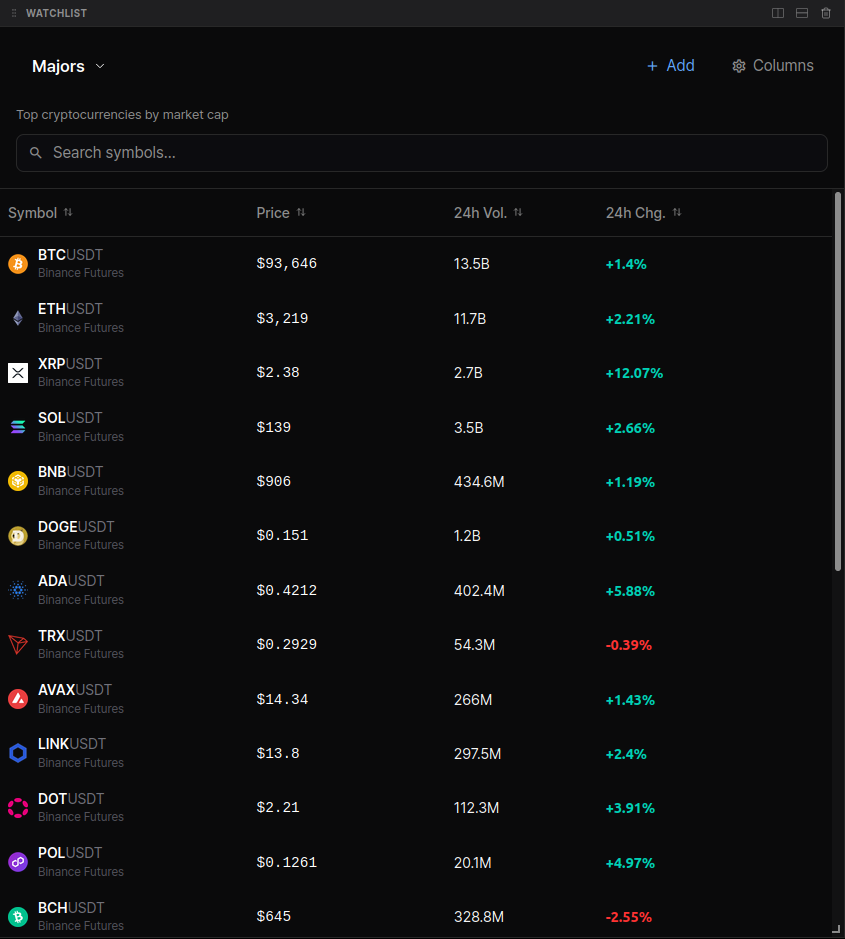
The Watchlist is a panel beside your chart for the markets you follow: live prices and stats for crypto, US stocks, futures, forex, metals, economic series, and prediction markets, kept in lists you organize with sections, flags, and notes. Click a row and the chart switches to that market. Every account keeps up to 50 lists with 250 symbols each, on every plan.
Open the watchlist
- Click Watchlist in the top bar. If the button is not in your bar, open the Panels menu: its Watchlist row opens the panel, and the pin beside the row puts the button back in the bar.
- Press
Alt+Shift+Wto show or hide the panel. - Open super search with
Ctrl/Cmd+Jand type "Watchlist".
The panel sits beside the chart next to the other side panels. Drag its header to move it among them, drag its edge to make it wider (a wider panel shows more columns), and hide it with its close button or Escape. Its open state and width are remembered for each workspace.
Lists
The name at the top left of the panel is the list picker. Click it to switch lists, create a new one, or open a list's ⋯ menu: Rename, Duplicate, Clear (empties the list, sections stay), Delete (your last list cannot be deleted), and Export.
Below your own lists the picker offers built-in lists. They are read-only: you can chart, flag, note, and favourite their rows, but not edit them. Duplicate a starter list to get a copy you can edit.
- Starter lists: seven curated lists every account gets. Overview mixes crypto, US stocks, futures, forex, metals, and macro data; the others are US stocks, Indices & futures, Forex, Crypto, Commodities & metals, and Rates & economy. A new account starts with its own copies of all seven.
- Hotlists: Gainers, Losers, Most active, and New listings rank crypto, TradFi, or both, following the asset filter in the control strip. Biggest OI change and Extreme funding rank crypto perpetuals. Hotlists refresh every minute.
- Crypto sectors: one list per sector, each coin on its most traded market.
- Flagged: one list per flag colour you have used (see below).
Add and remove symbols
Click Add symbol (the plus at the right of the control strip) to open the symbol search and tick what you want: crypto spot and perpetuals on any exchange, US stocks, CME futures, forex pairs, metals, economic series, and prediction market outcomes. The row menu of any list can also Copy to list or Move to list.
To remove symbols, select rows and press Delete, or right-click and choose Remove from list. There is no confirmation; add the symbol again if you change your mind.
Select several rows with Shift+click (a range) or Ctrl/Cmd+click (one row at a time). Every action in the row menu applies to the whole selection.
What a row shows
A row starts with the favourite star, the asset's logo with its exchange in the corner, the name, and a letter for the market type: P perpetual, S spot, D dated future, O option. Hover the name for the full picture: quote currency, margin type, expiry, the exchange's full name, your note, and any armed alerts. Prediction market rows show the Yes price in cents.
A dash means the number does not exist for that market: a stock has no funding rate, a forex pair no 24h volume, and a market that is closed shows no 24h change (hover the dash and it says so). Prices flash as they update.
Click a row, or press Enter, and the active chart switches to it. In a multi-chart layout the Chart N chip in the control strip names the chart rows open on; the row menu's Open in Chart items pick any other chart.
Columns and table settings
Click a column header to sort by it, again to flip the direction; each list remembers its own sort. The gear at the right of the control strip opens Table settings, and every change applies at once:
- Columns: tick the columns you want and drag them (or press
Alt+Up/Alt+Down) into order. They come in groups: Price (price, 24h change), Volume (24h volume and its change), Derivatives (open interest and funding, perpetuals only), Activity, and Fundamentals (market cap, listing date). Pick Compact or Comfortable density, or Reset columns. - Colours: colour values by sign, make the colour stronger the further a value sits from the column's middle, and paint negative funding red.
- Logos: show, hide, or monochrome logos. With logos hidden, rows show the exchange's short code instead.
- Hotbar: choose which controls the strip at the top of the panel shows, and in what order.
- Watchlists: order your lists in the picker, mark the list that opens first, and create a new one.
When the panel is narrow, columns that do not fit move under a +N button at the right of the header. Pick one there to swap it in, or widen the panel to bring them all back. A sort on a hidden column keeps applying.
Filter and search
Type in the search box at the top of the symbol column to filter the list by name. The chips in the control strip narrow it further: Asset class (All assets, Crypto, TradFi, Predictions), Exchanges (the venues present in the list), Market type (Perp, Spot, Dated), and the star for Favourites only. In a narrow panel the chips fold into one Filters menu.
Organize a list
Sections
Right-click rows, open Move to section, and choose Add section… to name a new section and move the rows into it, or pick an existing one. Set Group to Section to see the list by section: drag rows onto a section header to move them, click a header to collapse it, and use the header's ⋯ menu to rename or delete the section (its symbols stay in the list). A list holds up to 50 sections.
Group by
The Group chip groups the rows by section, asset type, venue, market type, or crypto sector. Rows keep the active sort inside their group, and a click on a group header collapses it.
Summary row
The Σ button pins a summary row to the bottom of the table with one figure per column. Click its label to cycle through Min, Max, Avg, and Median.
Aggregated mode
Switch Row mode from Normal to Aggregated to fold every market of a coin into one row with coin-level figures and a chip counting its markets. Expand a coin to see each market on its own line.
Manual order
Pick Manual order in the sort menu and the rows follow the order you set. Hover a row for its grip and drag it where you want it, or select rows and press Alt+Up/Alt+Down. Inside a section, rows move within that section. Dragging is off while a search or filter is active, in aggregated mode, and when grouped by anything but section. Built-in lists keep their own order. An imported list keeps the order of your file.
Flags, notes, and favourites
- Flags: right-click a row, open Flag, and pick one of seven colours; the flag shows next to the name.
Alt+Enterputs the last colour you picked on the selected rows, or takes it off again. Flags follow the symbol into every list, and each colour in use gets its own list under Flagged in the picker. Rename flags… lets you name the colours (up to 24 characters each). - Notes: Note… in the row menu opens a small editor for a note on that symbol (up to 500 characters). A note icon appears on the row, and the start of the note shows in the hover tooltip.
- Favourites: click the star or press
Spaceon a row. Favourites are the same set the symbol search uses, and the star in the control strip shows only favourites.
Alerts from a row
Add alert… in the row menu opens the alert form on that market with its current price filled in, whatever the chart is showing. Rows with armed price alerts carry a bell and the count, and a row lights up when one of its alerts fires. Continuous futures symbols such as ES1! and prediction markets take their alerts from the chart instead.
Import from TradingView
In TradingView, export a watchlist to a .txt file, or copy its symbols. Then open the list picker and choose Import, or open super search and type "Import watchlist". Paste the text or drop the file, check the preview, and import. TradingView sections are kept, symbols that could not be matched are listed so you can copy them and search by hand, and a list longer than 250 symbols is split into "Name", "Name (2)", and so on.
Export a list
Open a list's ⋯ menu in the picker and choose Export: a .txt file in TradingView's format, or a .csv with the key, exchange, symbol, name, and section of every row. A built-in list exports what it shows at that moment.
Keyboard
| Keys | What happens |
|---|---|
Alt+Shift+W | Show or hide the watchlist |
Up / Down | Move to the previous or next row and open it on the chart |
Home / End | Jump to the first or last row |
Enter | Open the selected row on the chart |
Space | Add or remove the favourite |
Delete / Backspace | Remove the selected rows from the list |
Alt+Enter | Flag the selected rows with the last colour you picked |
Alt+Up / Alt+Down | Move the selected rows in manual order |
Shift+click / Ctrl/Cmd+click | Select a range / add or drop one row |
Menu / Shift+F10 | Open the row menu |
Escape | Clear the selection; with nothing selected, hide the panel |
Delayed and locked markets
CME futures (ES, NQ, CL, GC, and the rest) show prices delayed 10 minutes unless you have the CME real-time data add-on; the delay shows as a small 10m chip next to the name. Until you accept the CME data terms these rows show a lock instead of prices: click a locked row to read and accept the terms, and the rows fill in. Economic series refresh every 30 minutes.