
A feed is a number your own code pushes to OpenMarket: an air quality index, a funding spread you compute, the balance of a wallet, anything with a value and a time. OpenMarket keeps the history and serves it; charts, alerts and Indicators read it live, and you decide who else can: nobody, everyone, the members of a room you own, or subscribers who pay you.
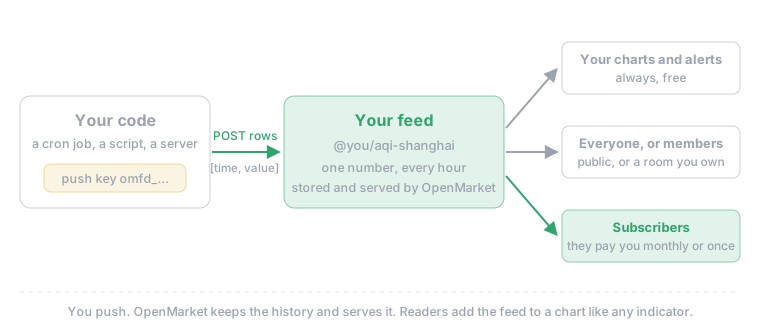
You do not install anything. You name the feed in the app, OpenMarket gives you a push key, and your own code (a cron job, a script, a server) pushes readings to one HTTPS address.
What you need
- A signed-in OpenMarket account. A private or public feed is free on every plan.
- Free keeps one reading an hour and up to 25 feeds. Push more often if you like: the readings inside an hour fold into one, the last.
- Selling needs Plus: one reading a minute, 250 feeds, and listings for subscribers. Plus is part of OpenMarket+, $35 a month. Pro and Business add second-by-second feeds.
The flow at a glance
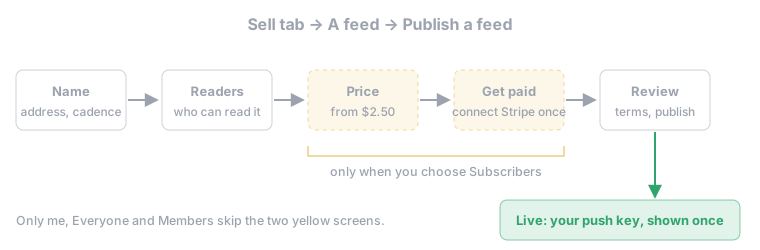
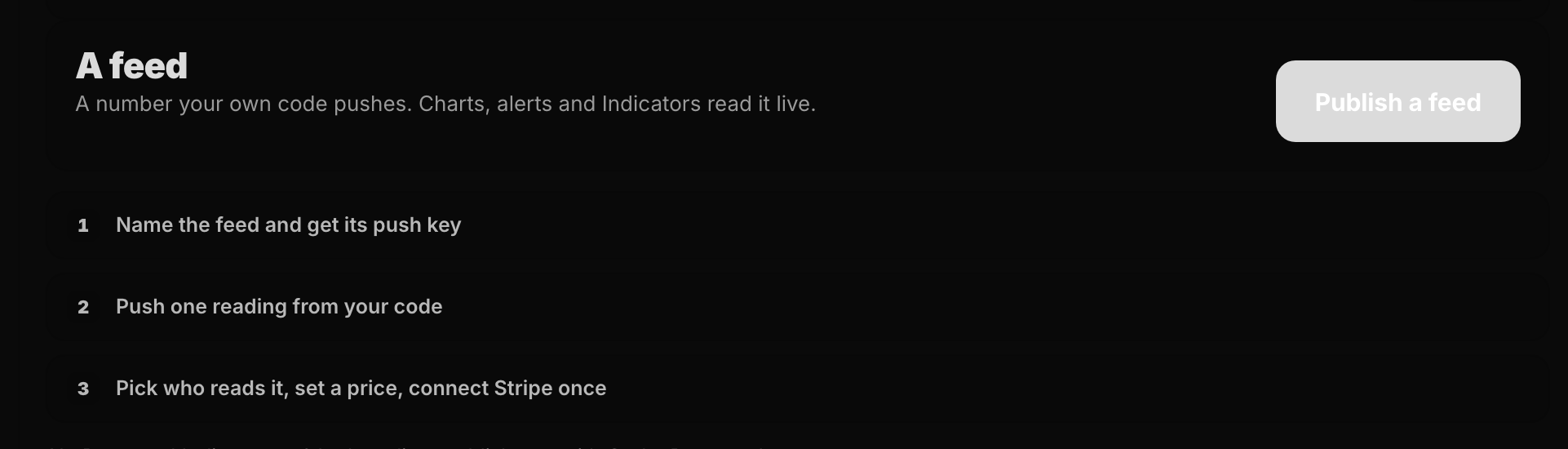
Click your avatar, open Marketplace, then Sell. The seller screen shows the A feed card beside the Indicator pitch. Click Publish a feed. If you already sell, the same button sits at the top of Your feeds.
Step 1: Name your feed
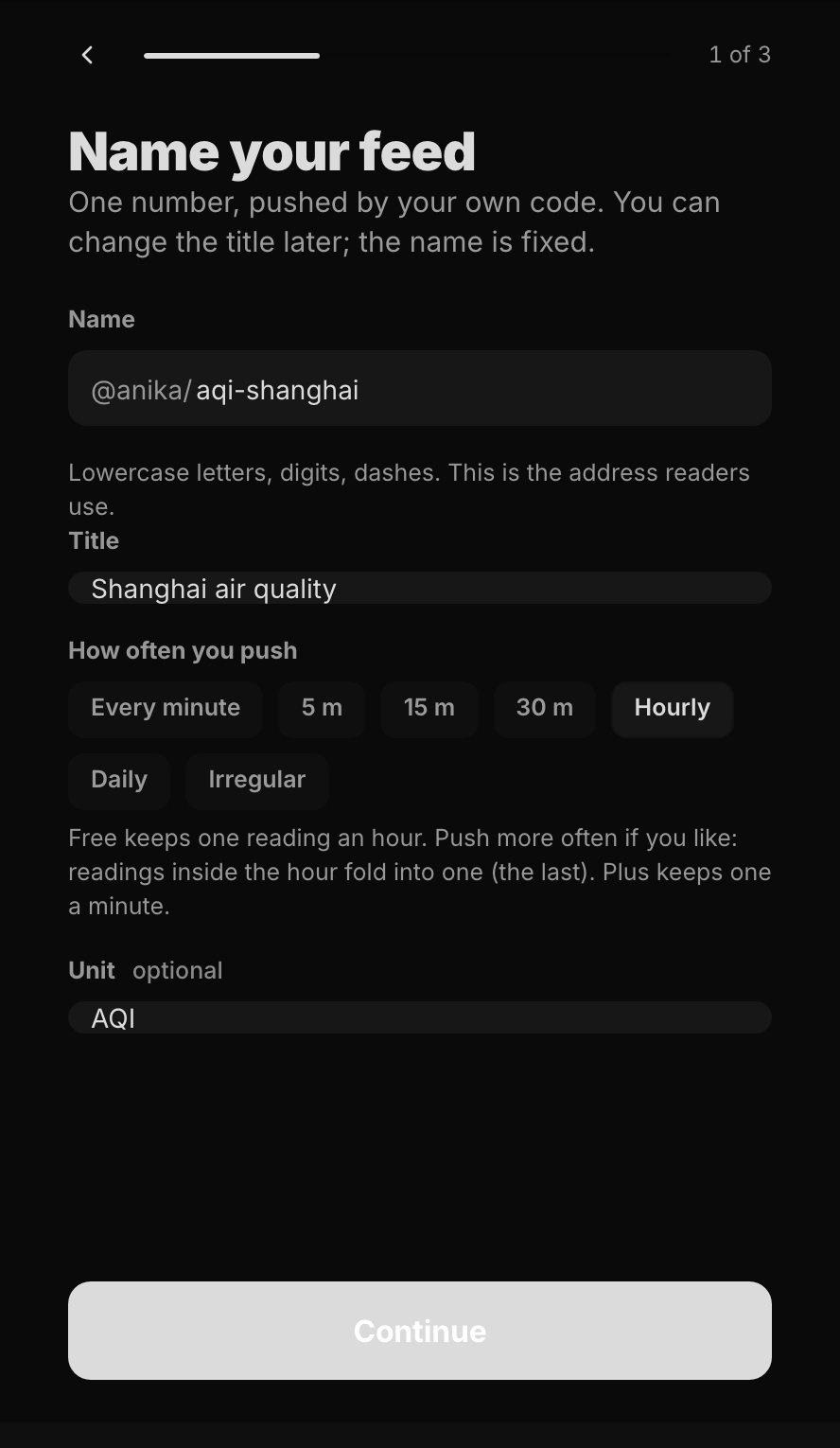
- Name is the last part of the feed's address, which readers see as
@<your-username>/<name>: lowercase letters, digits and dashes. It is fixed once the feed is published, so pick it with care. - Title is what people read in the legend and on the feed's page. You can change it later.
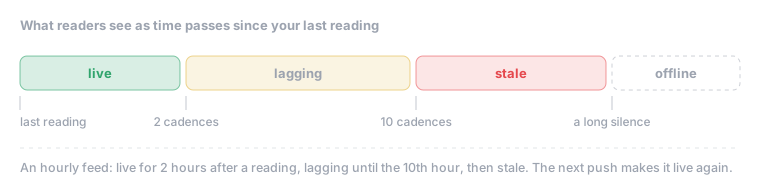
- How often you push: every minute, 5, 15 or 30 minutes, hourly, daily, or irregular. Charts use it to show whether the feed is live, lagging or stale.
- Unit is optional: AQI, %, USD.
The name is checked before anything is created. A name you already use, or one taken on the OpenMarket registry, is refused here, not after the fact.
Step 2: Choose who can read it
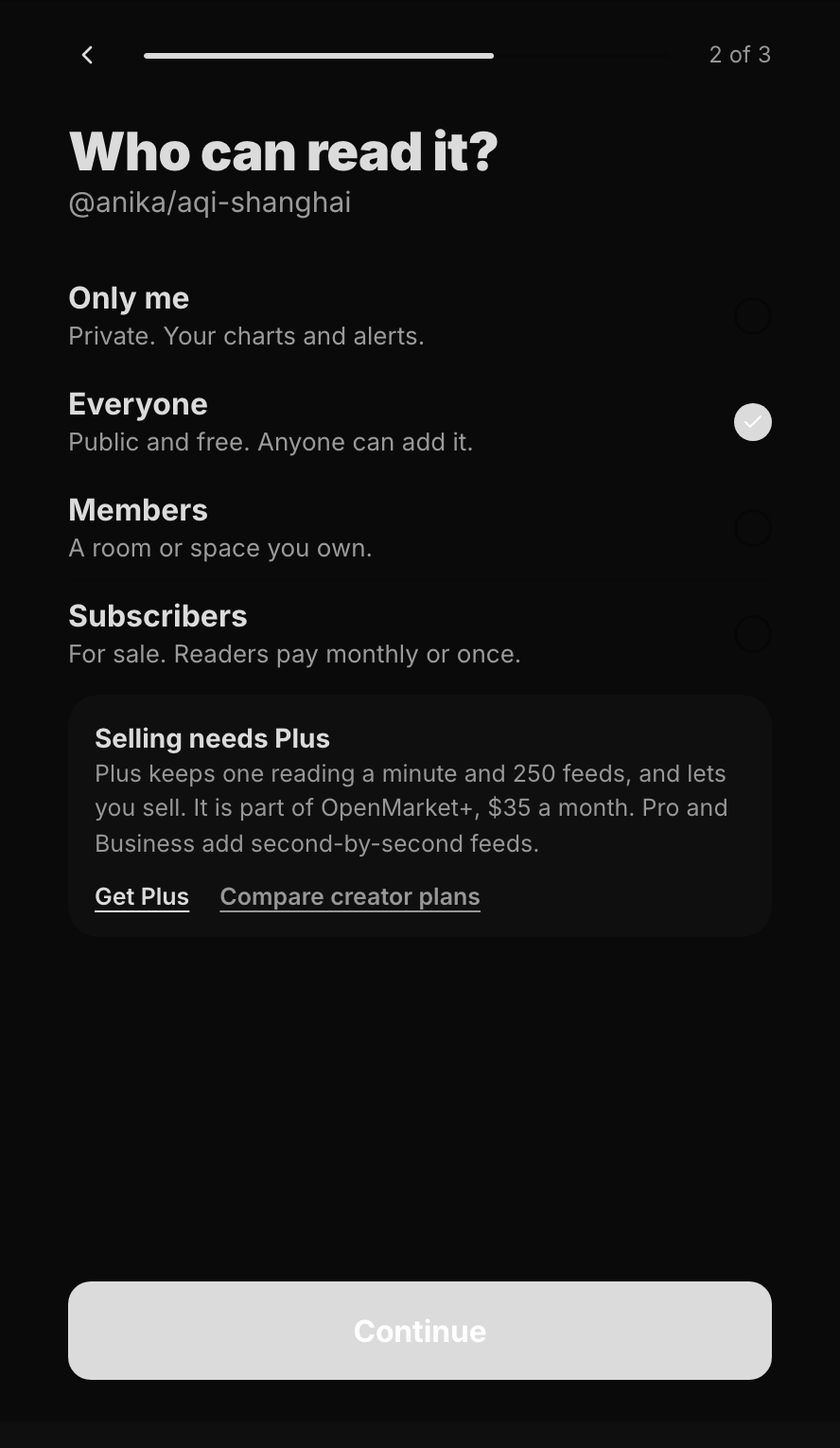
| Readers | Who reads it | Cost to you |
|---|---|---|
| Only me | Private. Your own charts and alerts. | Free |
| Everyone | Public and free. Anyone can add it to a chart. | Free |
| Members | The members of a room or space you own. Paste its id. | Free |
| Subscribers | For sale. Readers pay monthly or once. | Plus |
Selling a feed. Choose Subscribers, then set the price on the next screen: Monthly or One-time, from 2.50.Thescreenshowswhatyougetpersale;OpenMarketkeeps200.50. Payouts run through Stripe, which you connect once in Get paid. You can list the feed before Stripe has finished checking your details (List it now): readers see Not for sale yet until your payouts are ready, and sales open on their own after that.
Step 3: Review and publish
The Review screen repeats the feed's address, cadence and readers. Agree to the registry terms (and the marketplace terms when you sell), then press Publish feed, or List it for a feed with a price.
Step 4: Keep your push key
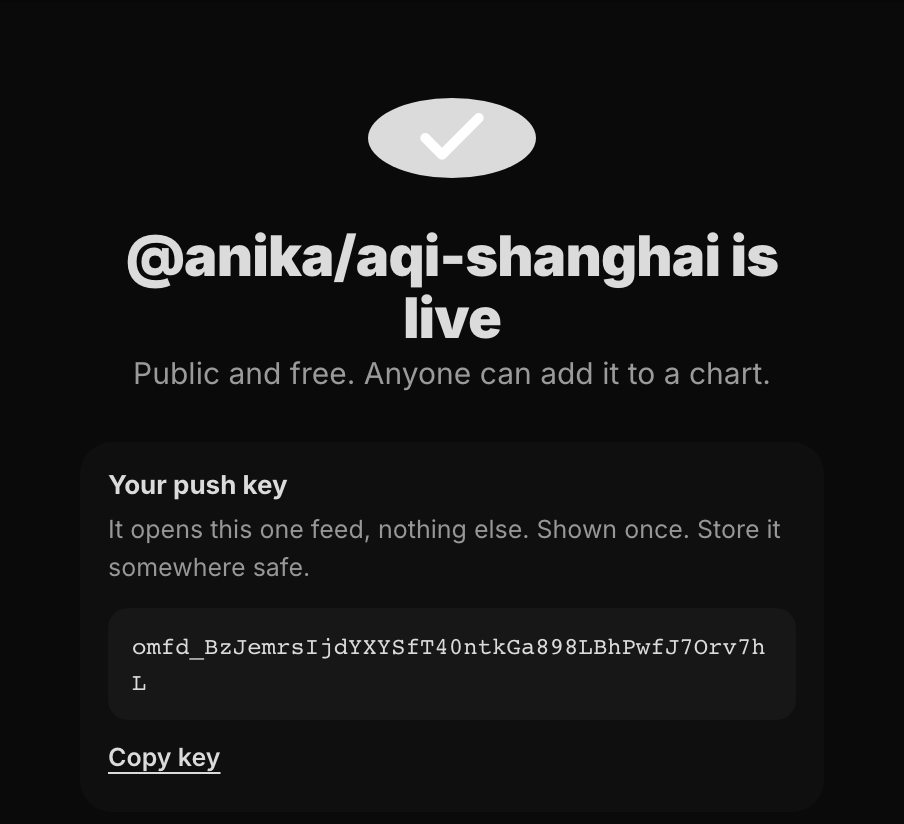
The live screen shows Your push key once. It starts with omfd_ and opens this one feed, nothing else. Click
Copy key and store it where your code can read it (an environment variable, a secrets manager). Nobody at
OpenMarket can show it to you again.
Lost it? Open Your feeds, find the feed, and choose Rotate push key from its menu. A new key is minted and the old one stops working at once.
Step 5: Push readings from your code
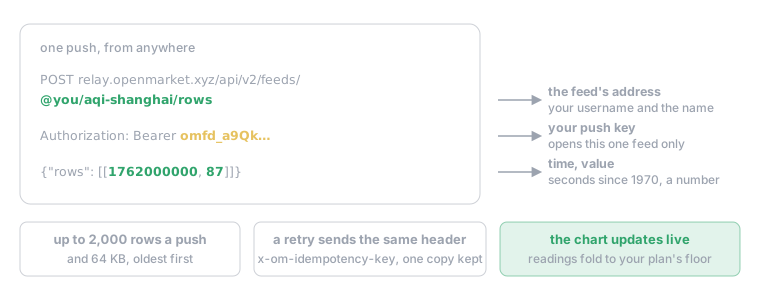
The live screen also shows a ready-to-run curl with your key and address filled in. This is the whole contract:
curl -X POST "https://relay.openmarket.xyz/api/v2/feeds/@you/aqi-shanghai/rows" \
  -H "Authorization: Bearer omfd_YOUR_PUSH_KEY" \
  -H "Content-Type: application/json" \
-d '{"rows": [[1762000000, 87]]}'- A row is
[time, value]: the time in seconds since 1970 (UTC), the value a plain number. Several rows in one push are fine, oldest first. - One push holds up to 2,000 rows and 64 KB.
- Readings inside one bucket of your plan's floor fold into one, the last: an hour on Free, a minute on Plus, a second on Pro and Business.
- Retrying a push after a network error? Send the same
x-om-idempotency-keyheader (1 to 80 letters, digits,_,.,:or-) and the feed keeps one copy. - A wrong or rotated key answers 401. Too many pushes in a short time answer 429 with a
Retry-Afterheader: wait that many seconds and send again.
The live screen waits for your first reading and shows its state, age and value as soon as it lands. From then on the feed's state follows your cadence:
A cron job, for example
#!/bin/sh
value=$(curl -s "https://example.org/api/aqi?city=shanghai" | jq '.aqi')
curl -s -X POST "https://relay.openmarket.xyz/api/v2/feeds/@you/aqi-shanghai/rows" \
  -H "Authorization: Bearer $OM_FEED_KEY" \
  -H "Content-Type: application/json" \
  -d "{\"rows\": [[$(date +%s), $value]]}"
Run it every hour and the chart draws one point per hour.
Reading a feed on a chart
Readers find your feed by its name in super search (Ctrl/Cmd+K) or open its page from the link you share. The
Indicators dialog shows the feed's provider, cadence, units, history and a 30-day record (uptime, median lag,
installs), then Add puts it on the chart. A paid feed shows its price there and readers subscribe in place. On
the chart, the legend shows the feed's title, the provider (your username) and when it last updated, and a chip says
lagging, stale or offline when your pushes fall behind.
Manage your feeds

Your feeds in the Seller Hub lists every feed with its cadence, state, last reading, readers and price. The menu on each row offers:
- Stop sales and Resume sales: nobody new can subscribe while sales are stopped; current subscribers keep reading until their period ends.
- Make it free: closes the listing and makes the feed public. While subscribers remain, stop sales first and press it again once their periods end.
- Rotate push key: a new key, the old one stops at once.
- Delete feed: permanent, and the name cannot be used again. A feed with a listing must be made free first.
A listed price cannot be changed yet.
Plans and limits
| Free | Plus | Pro | Business | |
|---|---|---|---|---|
| Readings kept per | hour | minute | second | second |
| Feeds | 25 | 250 | 250 | 250 |
| Second-by-second feeds | 0 | 0 | 10 | 50 |
| History kept | 50,000 readings | 90 days | 7 days | 7 days |
| Sell feeds | no | yes | yes | yes |
A feed keeps its newest readings up to the history cap; past it, the oldest readings go first.